Most people treat their iPad like a jumbo iPhone. Rows of app icons. Maybe a few folders. A screen or two with widgets they barely notice.
And we use it primarily for watching videos on social media or streaming services. Some use it for reading books or browsing content while you watch TV on a big screen.
But the iPad can be so much more, especially if you stop thinking of it as a “main computer” and start using it as a powerful second device.
I’ve been testing this approach for a while now, and with iPadOS 26 introducing overlapping windows and more Mac-like multitasking, it’s the perfect time to rethink your iPad as a focused, task-based productivity sidekick.
The trick?
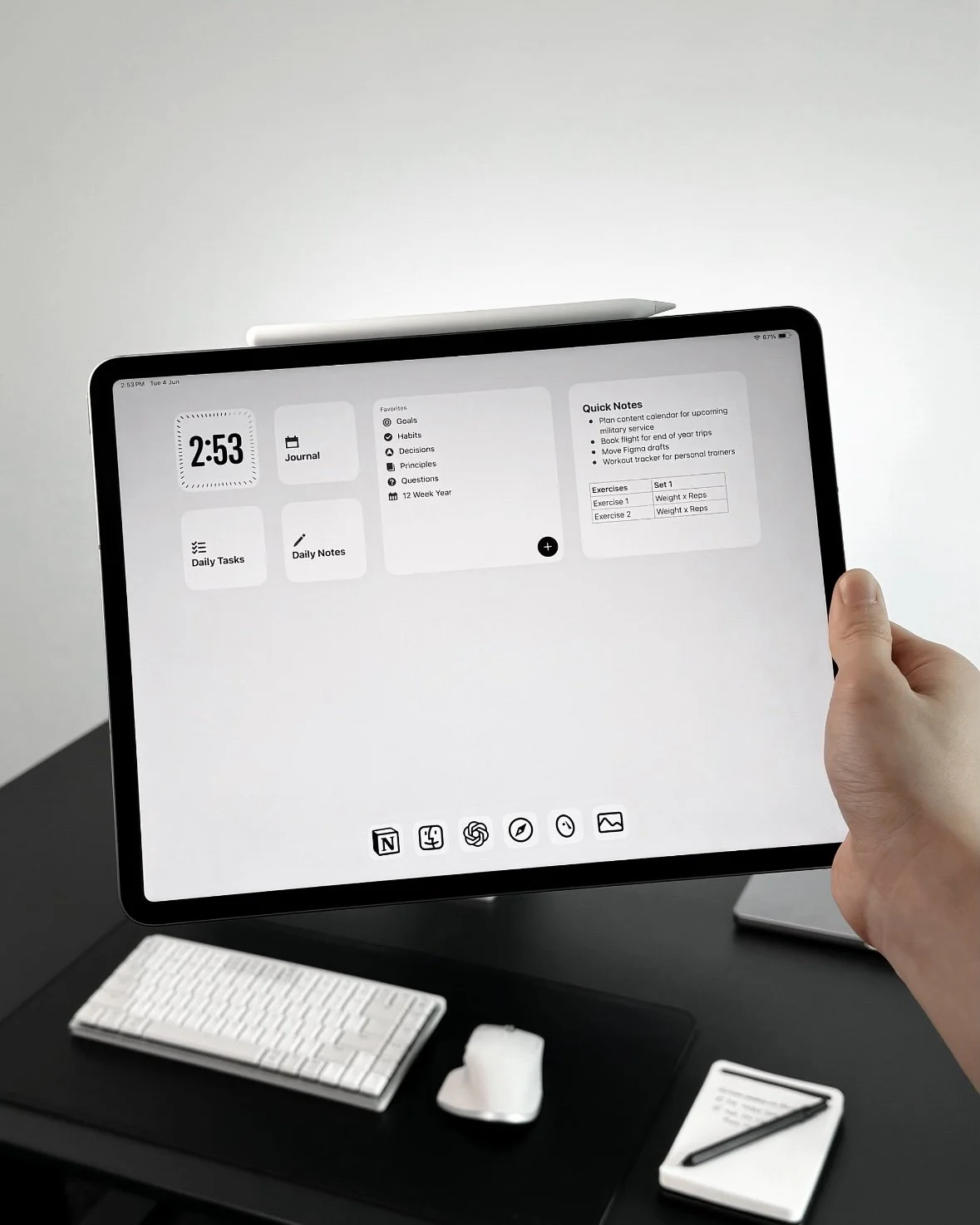
Ditch the app grid. Build screens that match your tasks, not your apps. And use widgets, not just icons, to drive your focus.
Here’s how I’ve done it.
Think in Workspaces, Not Pages
Instead of swiping through endless pages of app icons, I’ve dedicated each Home Screen to a specific kind of task:
Work
Writing
Entertainment
Trading
Each screen becomes a focused workspace. To make it obvious, I use a simple WidgetSmith text widget: a big bold label at the top of each screen that names the space.
No guessing. No clutter.
Make Widgets the Star
Now here’s where it gets interesting. Instead of filling each screen with apps, I use widgets to surface actions.
My Work screen, for example, includes:
A large Calendar widget showing my daily schedule
A Mail widget with a preview of my inbox
The ChatGPT widget for quick prompts and follow-ups
A Reminders widget showing just today’s tasks
A compact Weather widget - because yes, outdoor calls still happen
Each of these widgets is functional. They give me real-time data, shortcuts, and context, all without opening a single app.
I’m not tapping around trying to remember what I needed to do. I’m doing.
This is the magic: Home Screens become live dashboards for action.
Create Themed Screens
On my Writing screen, I set up widgets for:
Ulysses, front and center
Notes, pinned to my current draft ideas
A Dictionary widget for quick reference
A Timer widget for 25-minute focused sprints
The moment I flip to this screen, my brain shifts gears. No decision fatigue. Just context and cues to get started.
Same with my Trading screen:
A stock tracking widget showing active trades from RobinHood or Fidelity
A curated News widget for market updates
Notes pinned with trade strategies
A shortcut to my tracking spreadsheet
Instead of asking, “What app should I open?”, I just swipe to the screen I need.
It’s like having a set of desks, each one ready for a different job. Just swivel your chair.
Bonus: With iPadOS 26, It’s a Mini Mac
With iPadOS 26, you can finally run overlapping windows. I often keep Ulysses open beside Safari or float ChatGPT next to a draft.
Add a Magic Keyboard or trackpad, and suddenly your iPad behaves less like a mobile device and more like a second Mac, one that’s portable and purpose-driven.
It’s a TaskPad
Your iPad doesn’t need to compete with your Mac. It can complement it, brilliantly, if you stop organizing it like a phone. Create task-specific workspaces, surface actions with widgets, and flip between them like flipping through physical notebooks.
It’s simple. It’s clean. And it works.
Try it for a week. You’ll never go back to rows of icons again.
Subscribe
Get new posts delivered to your inbox. No spam.
Reply to the author
Thoughts on “TaskPad: Turn Your iPad Into a Task-Based Productivity Hub”? Send a private note — it goes straight to the author's inbox.